Getting-Started-With-iOS
RelaySMS for iOS
Stay Connected, Even Without Internet
RelaySMS enables users to stay connected to their online platforms even when they don't have internet access. By utilizing SMS messaging, users can communicate seamlessly while ensuring their contacts receive their messages just as if they had sent them through traditional online platforms.
Getting Started with RelaySMS on iOS
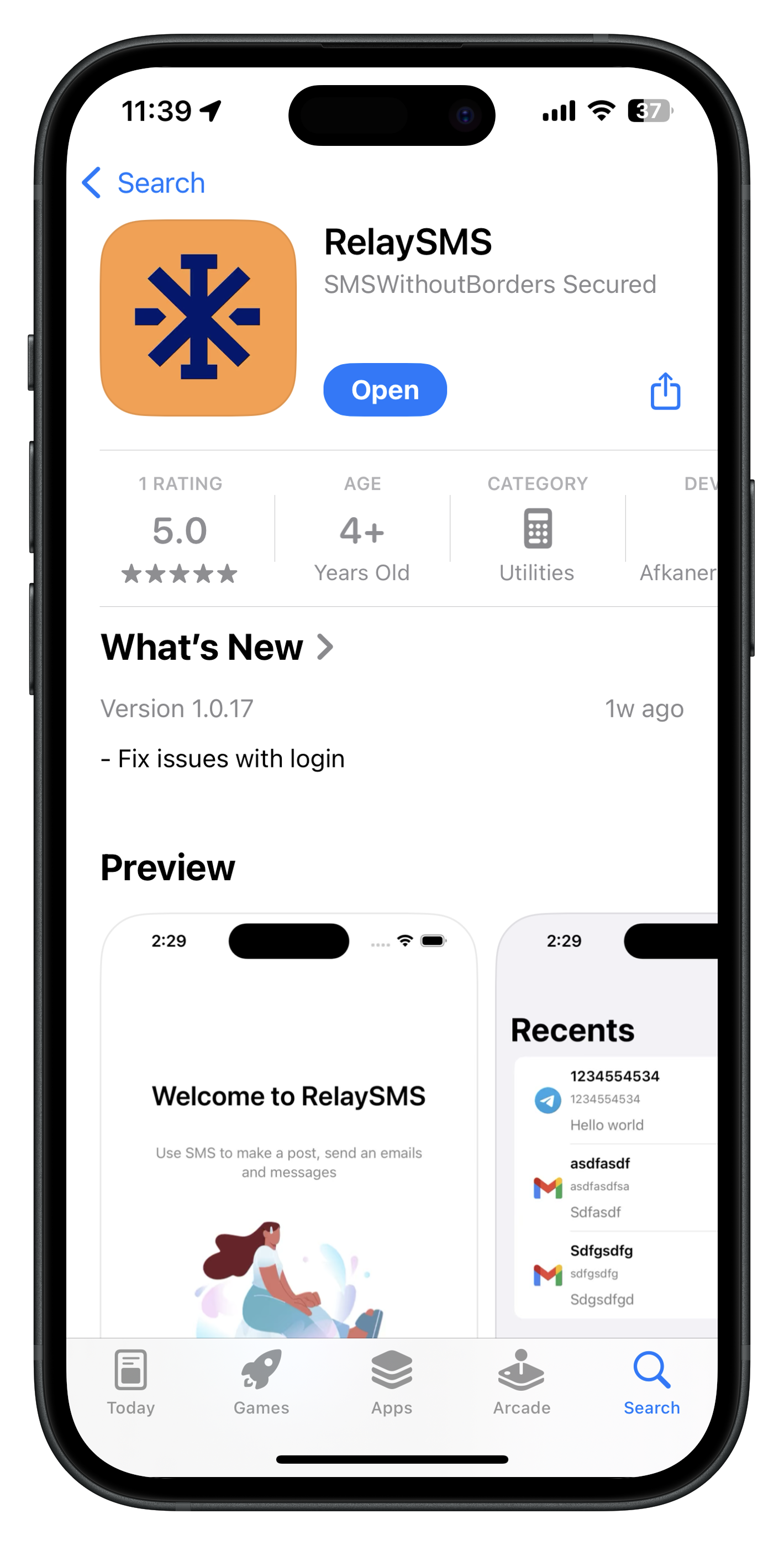
Step 1: Download the App
-
Download RelaySMS from the App Store
-
Alternatively, you can access it on GitHub
-
Technical Requirements:
- SMS-capable iPhone
- iOS-compatible version
There are two ways to communicate using the app during an internet shutdown;
A. By using Offline RelaySMS Mail, where you can send an email without needing to sign up or save platforms.
B. By saving access to your desired platforms on the app
A. Communicating Using Offline RelaySMS Mail
Use Offline RelaySMS Mail (no setup required) or saved platforms (sign-up and save access ahead of time).
1. Use Offline RelaySMS Mail (No setup required)
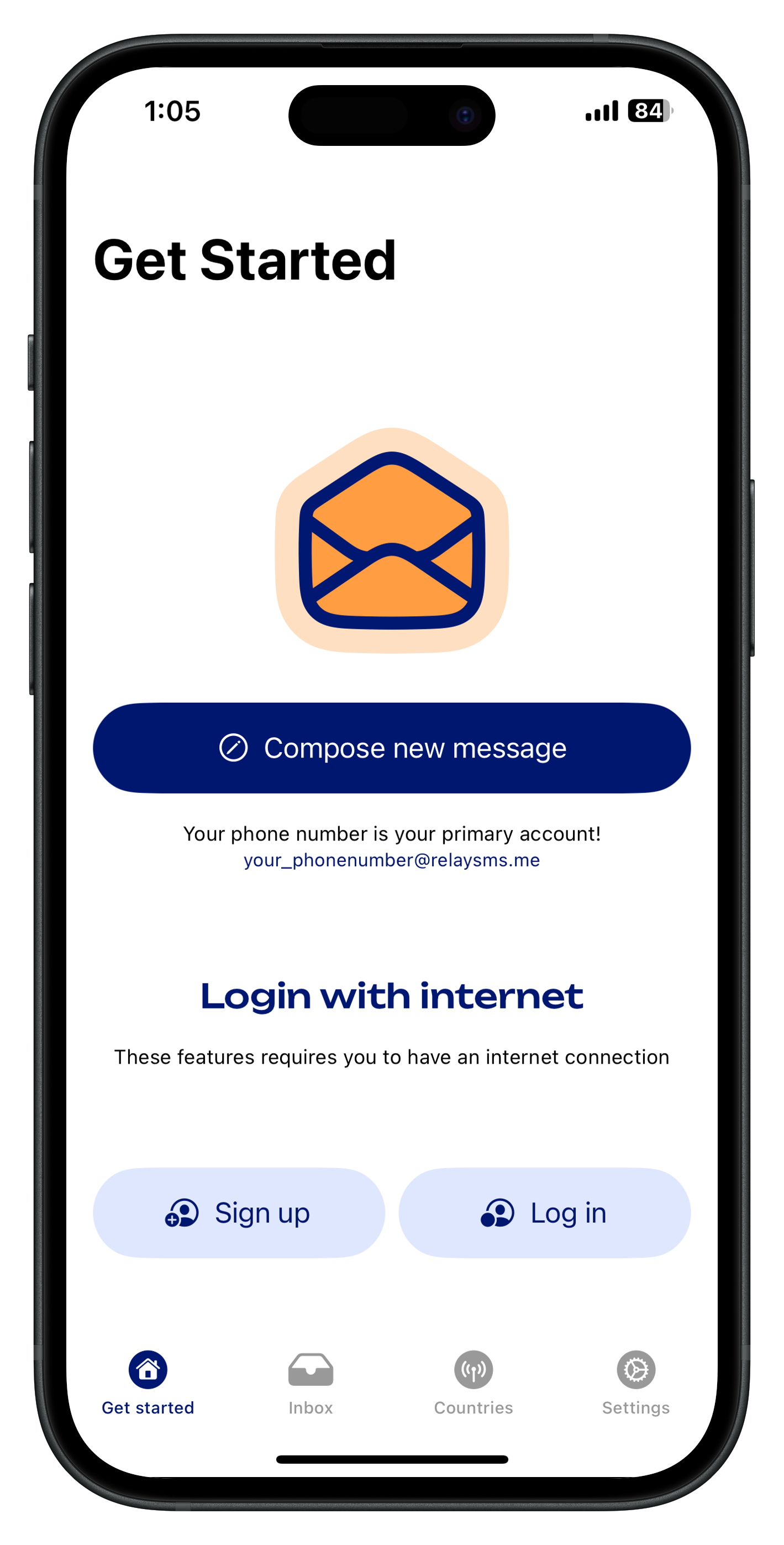
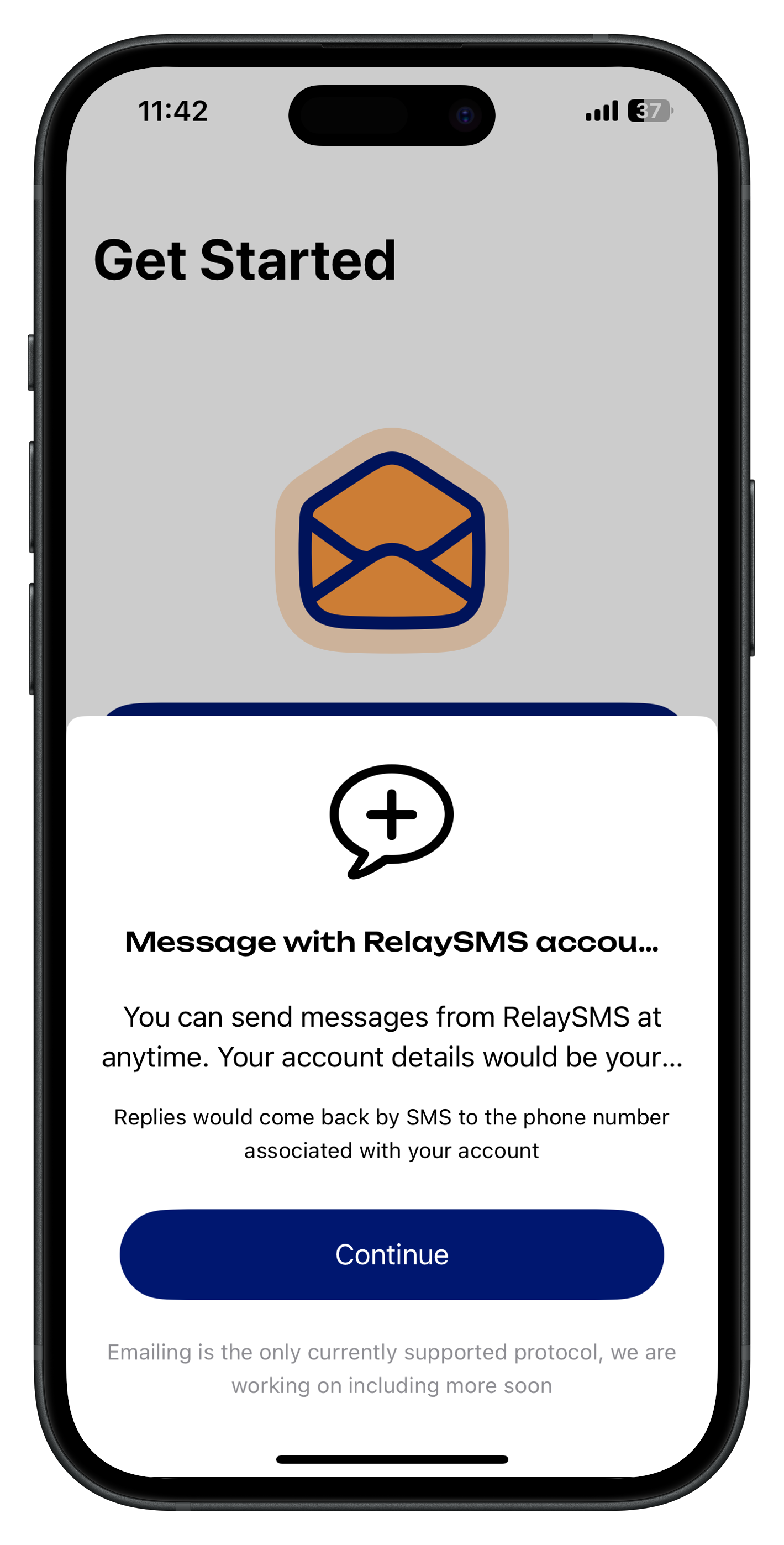
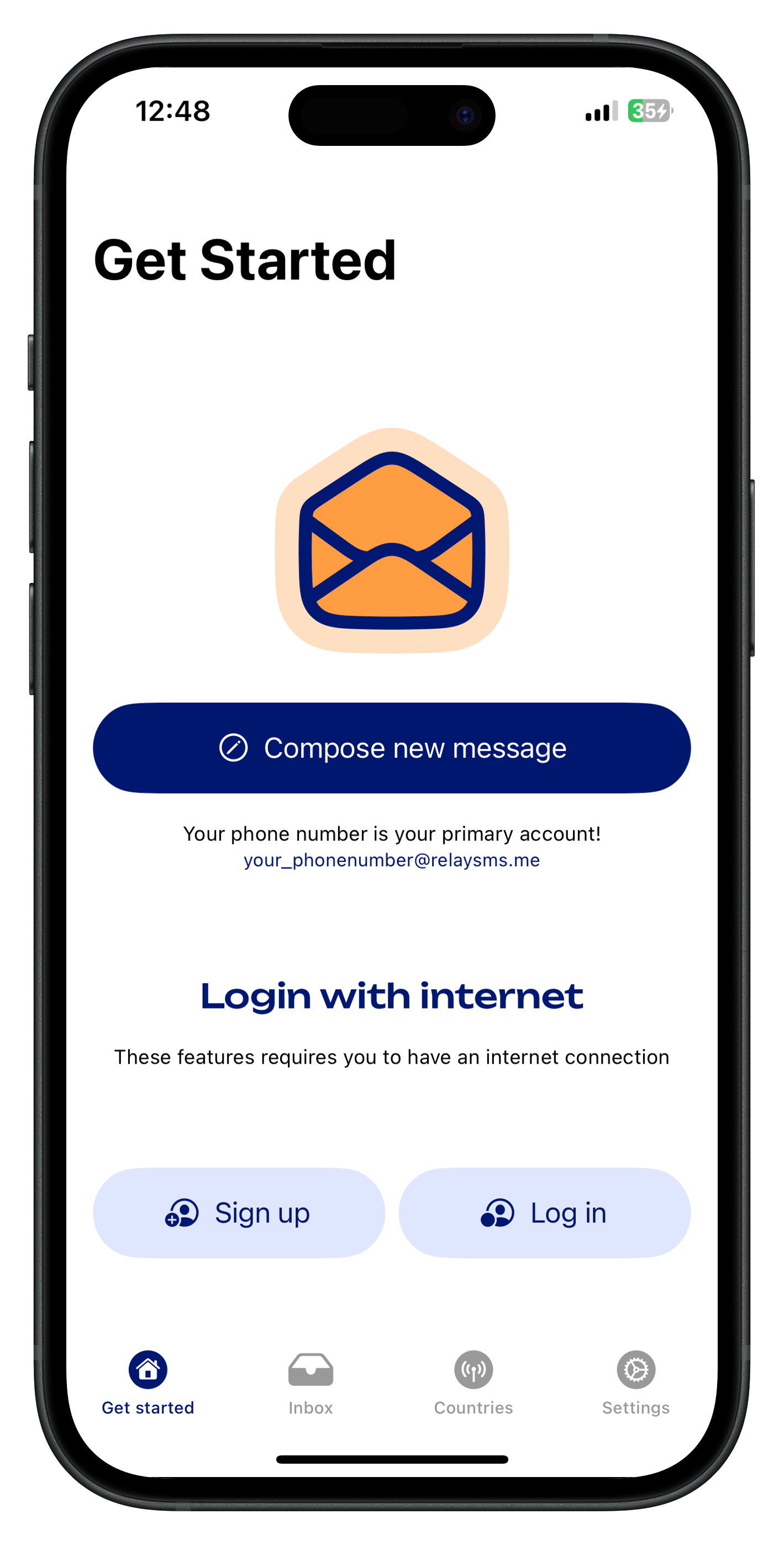
Step 1: Click the "compose new message" Button
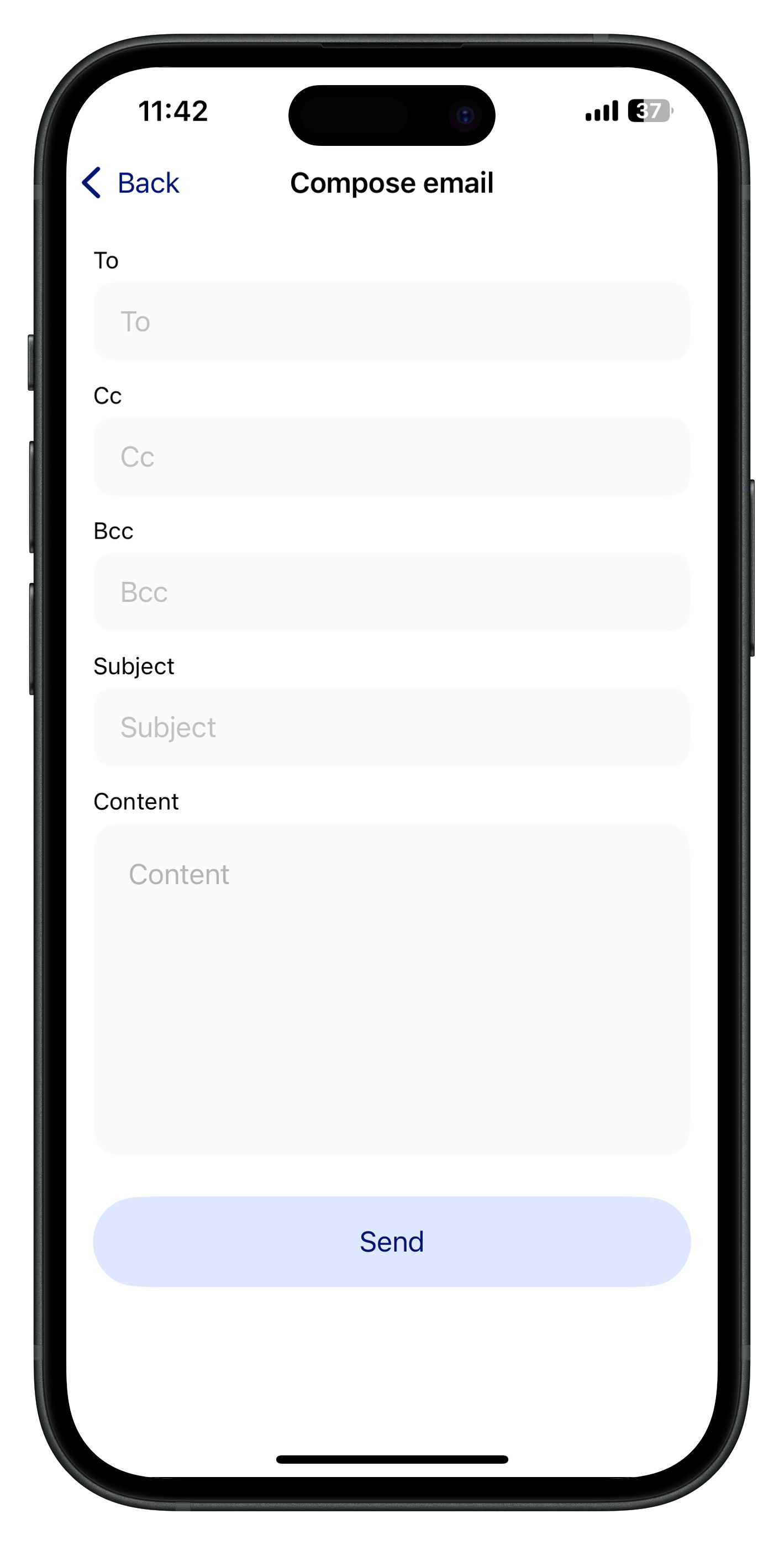
Step 2. Compose a Message
- Fill in the required fields (e.g., recipient’s email for Gmail). Click Send, and RelaySMS will redirect you to the SMS app.
Step 3: Sending Messages via SMS
After composing your message, confirm and send it through your phone’s SMS app. The recipient will receive the message as from your RelaySMS email alias created with your phone number, e.g., 123456@relaysms.me
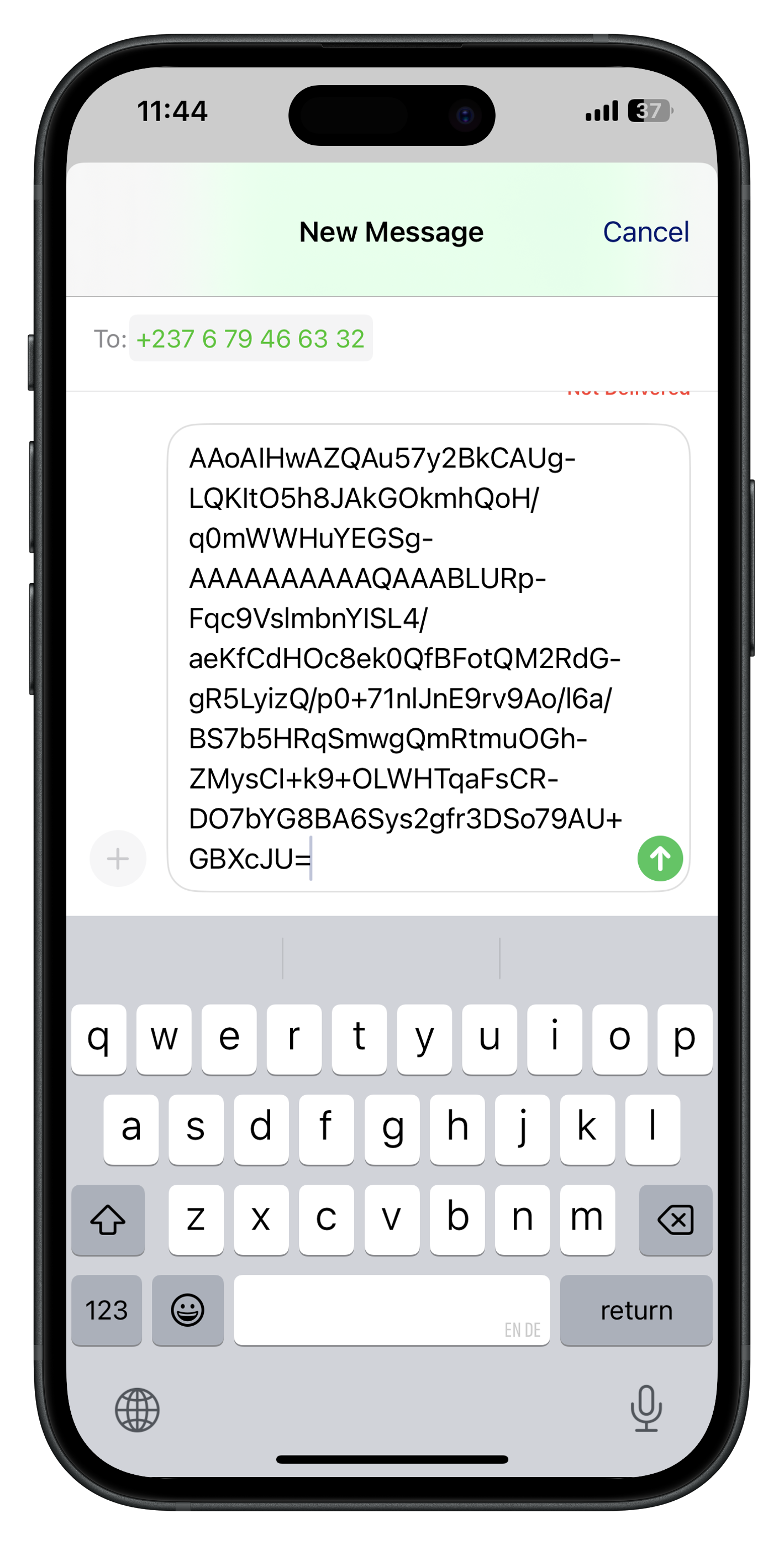
Step 4: Receiving Replies
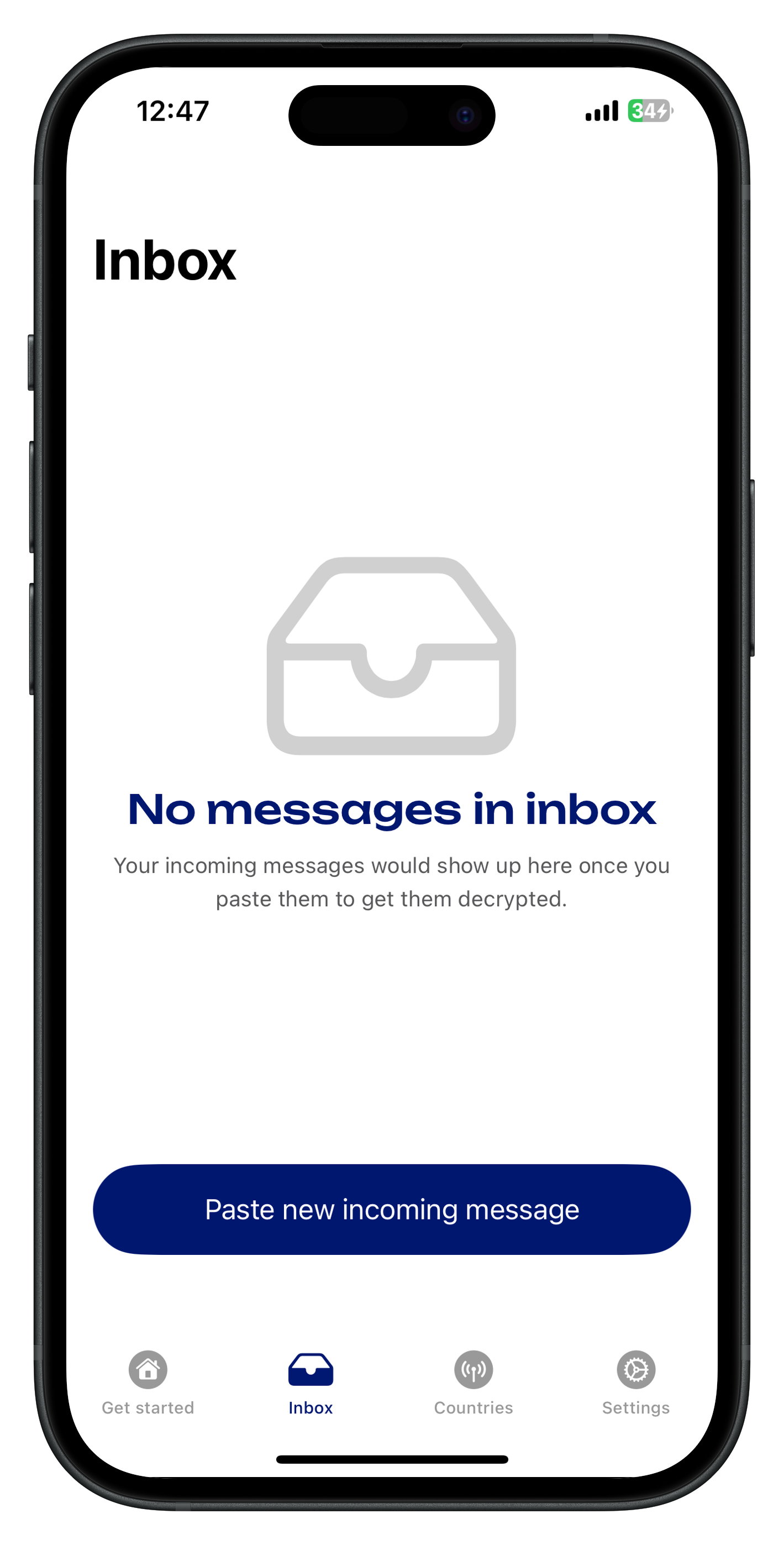
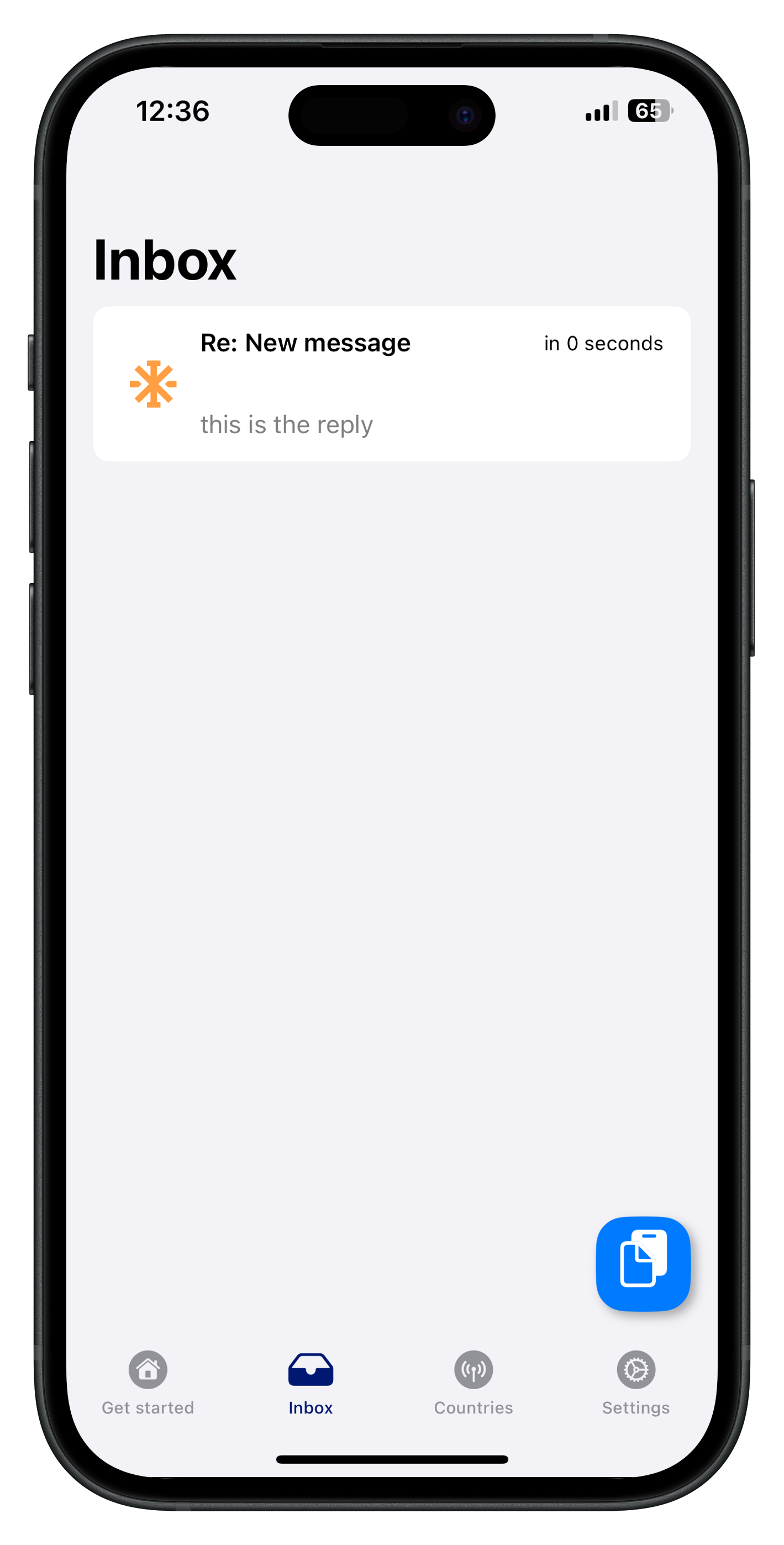
- Open the RelaySMS app and navigate to the Inbox.
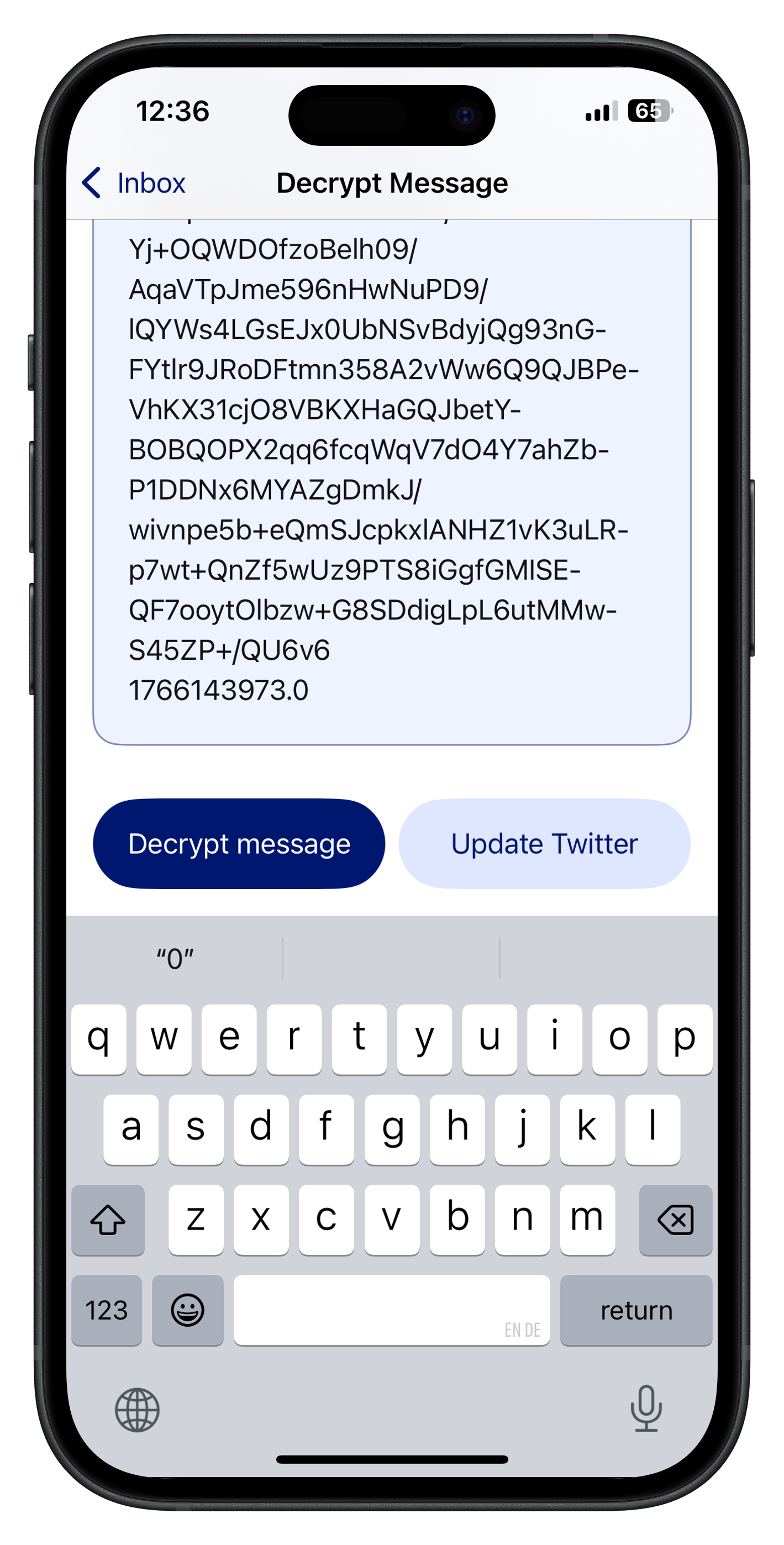
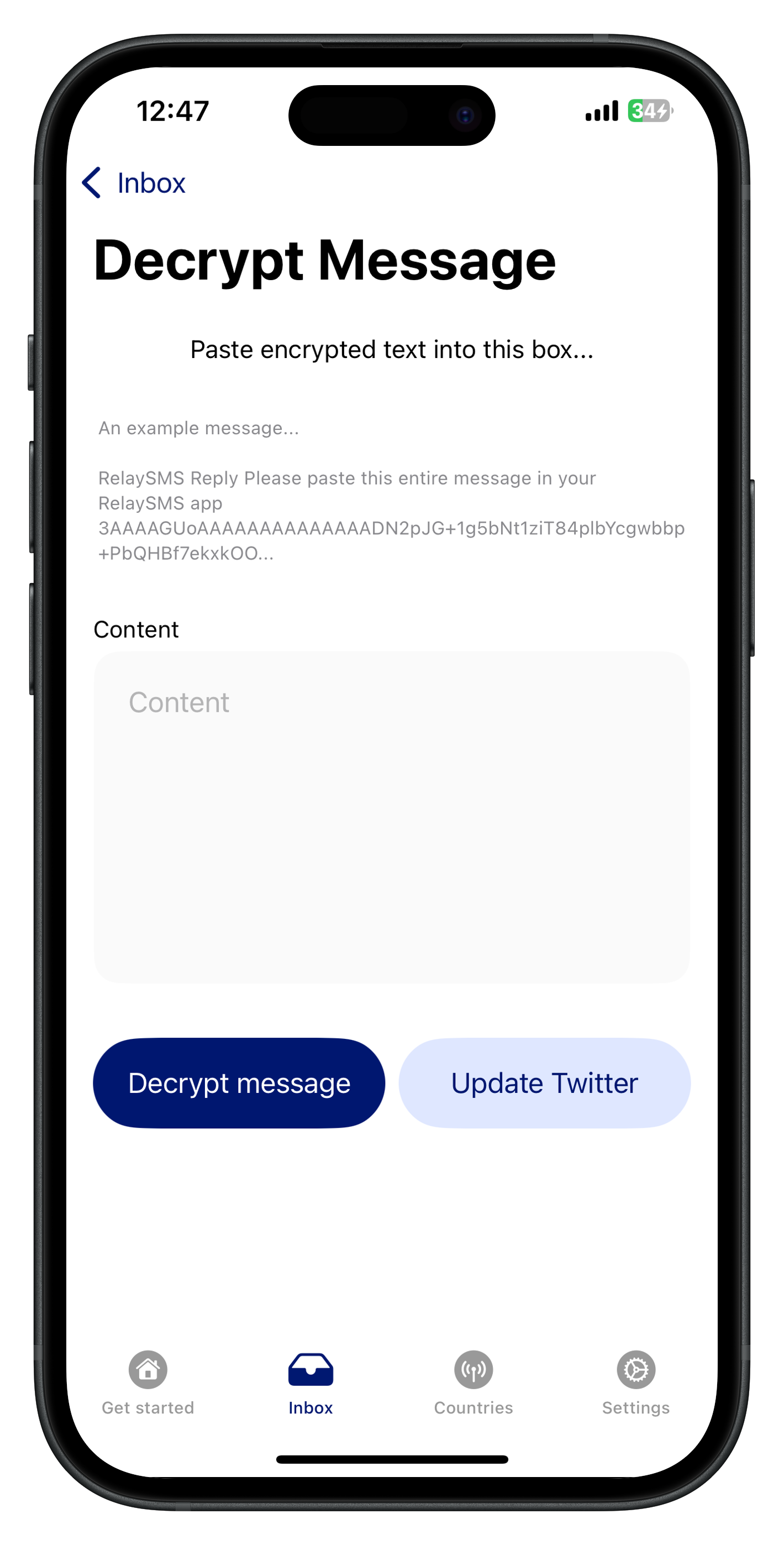
- Tap "Paste the incoming message here" and input the SMS response.
- Tap "Decrypt" to reveal the message.
B. Communicating Using Saved Platforms
Step 1: Onboarding Screens
Step 2: Sign Up for an Account
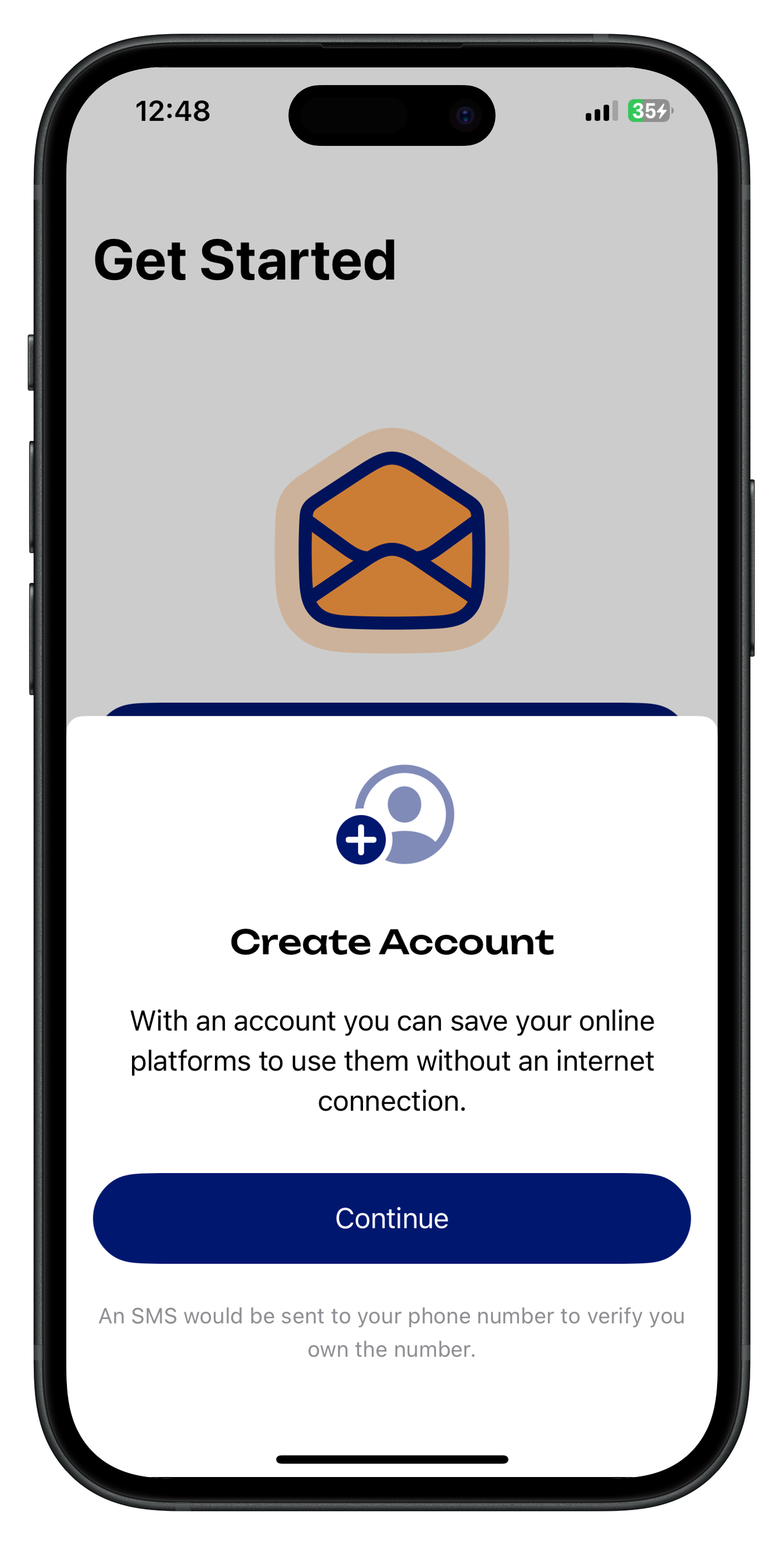
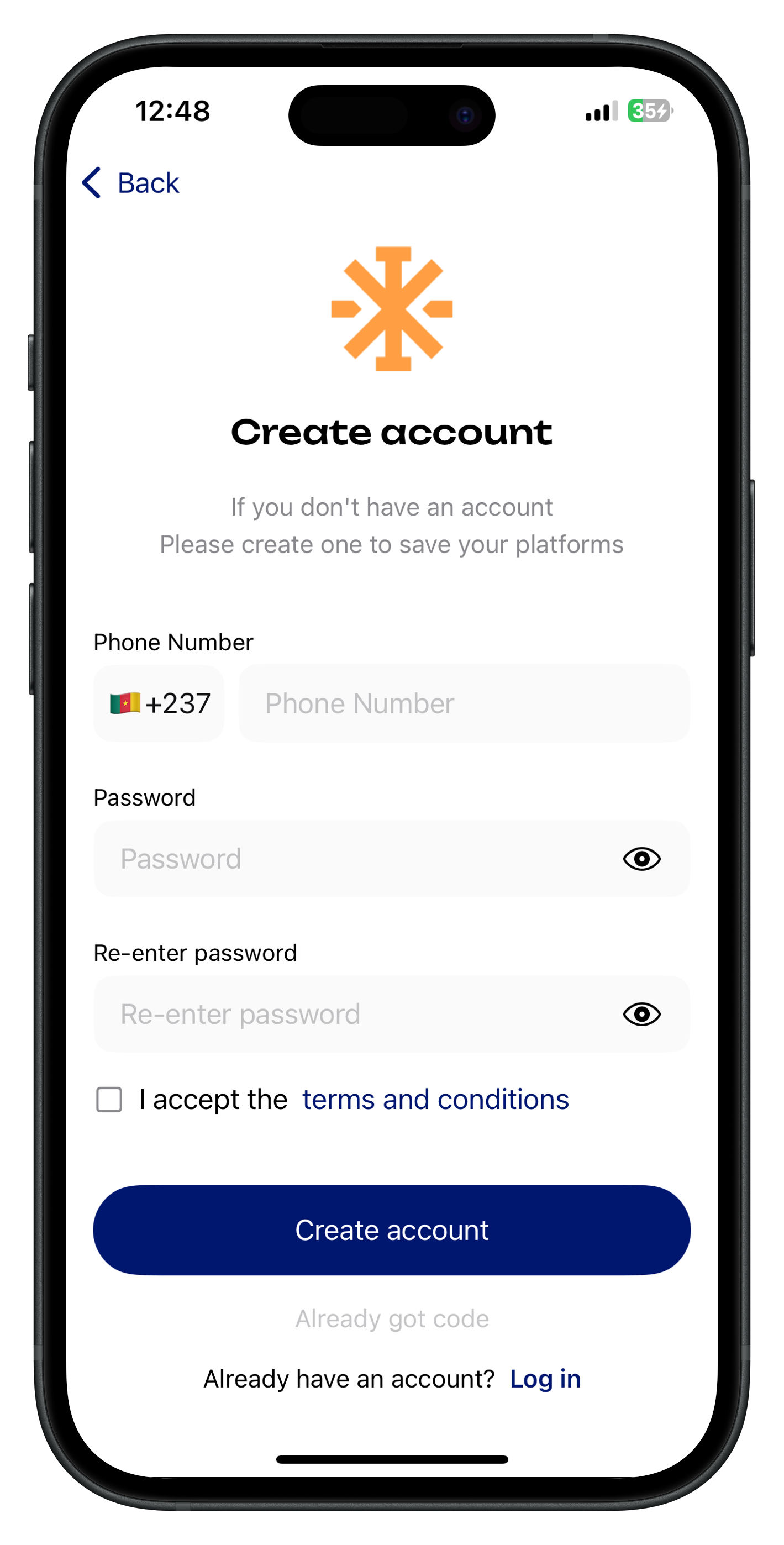
- Open the app and tap on Sign Up.
- Enter the required information and proceed.
- An authentication PIN will be sent to your phone via SMS.
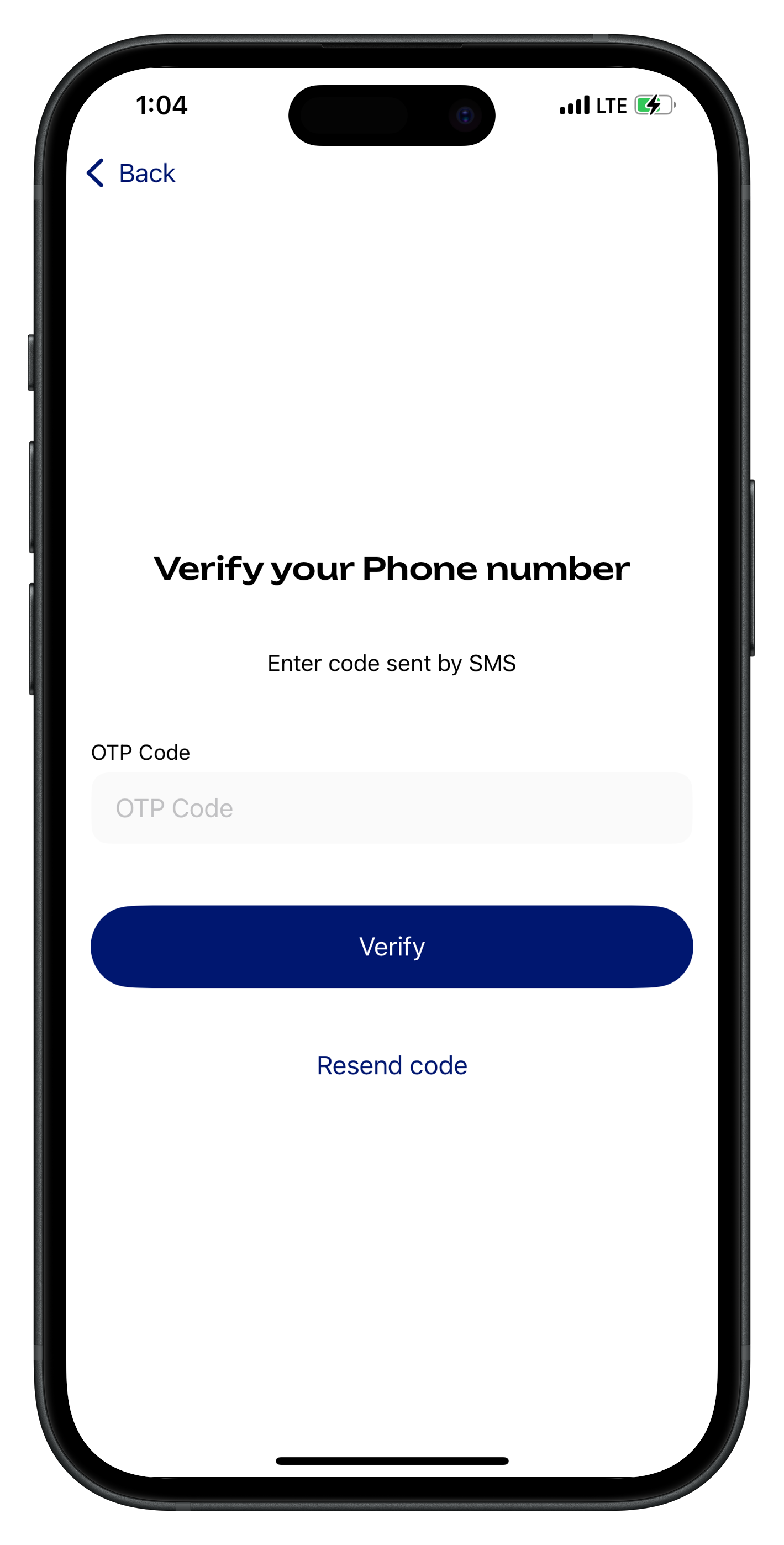
Step 3: Verify Your Phone Number
- Enter the verification code sent via SMS to complete your account setup.
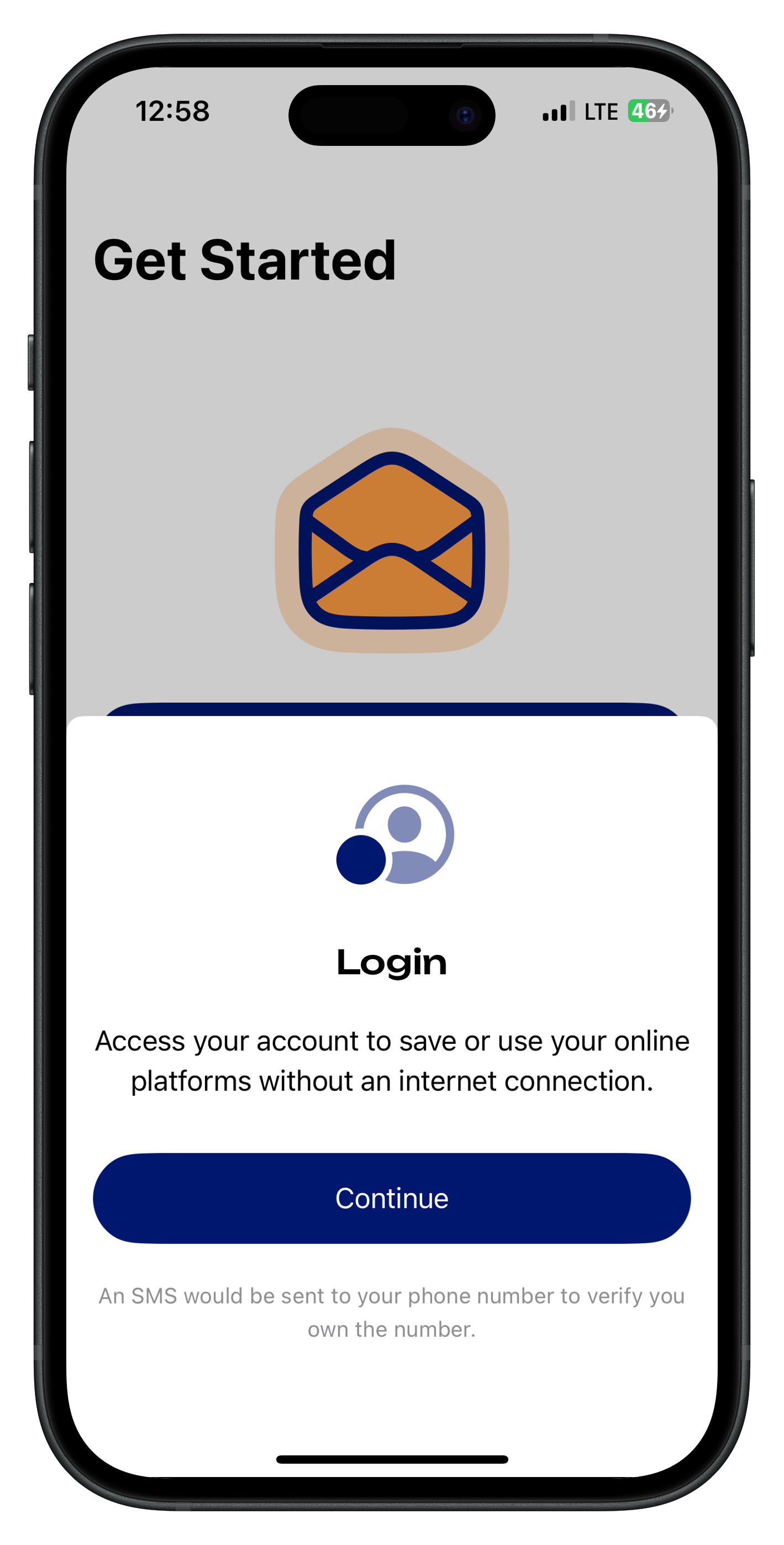
Step 4: Log In
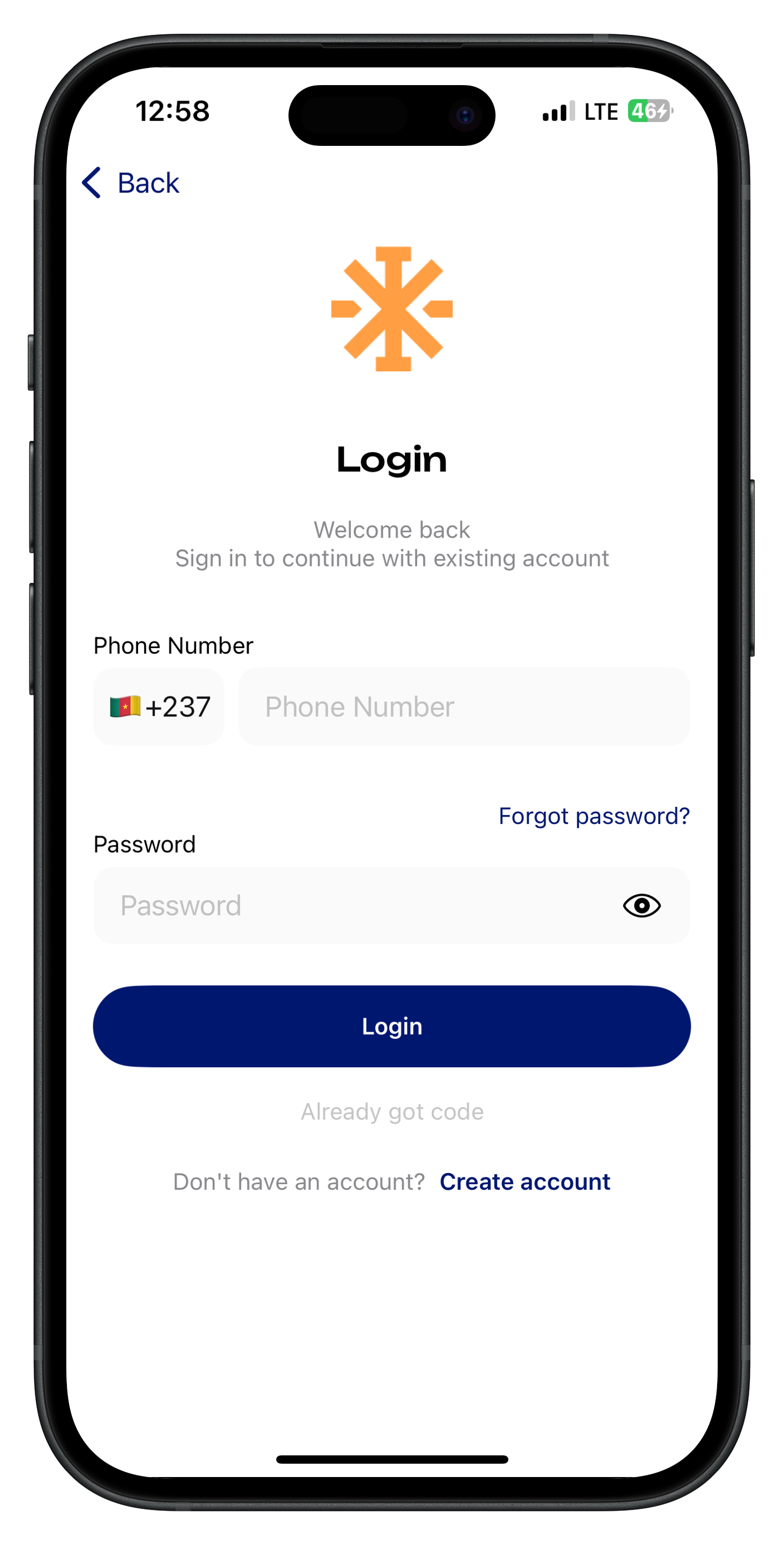
- If you already have an account, tap Log In.
- Enter your registered phone number and password.
- Enter the verification code received via SMS.
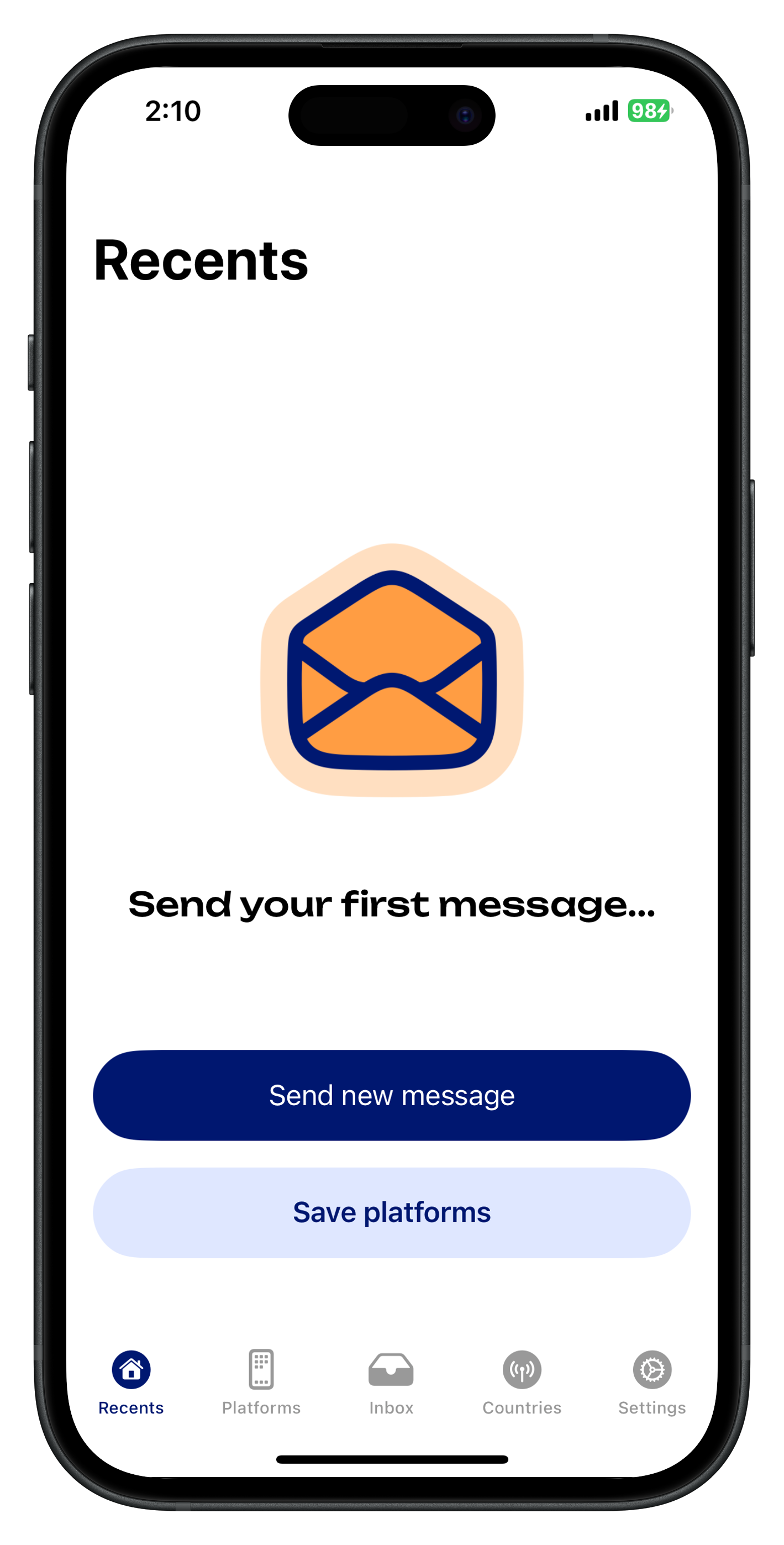
step 5: Saving Platforms for Offline Messaging
- Log in to RelaySMS.
- Tap Save Accounts to view the list of available platforms.
- Select the platforms you wish to save.
- Ensure the platform you want to save is installed on your phone.
Step 6: Choose a Routing Number
a. Tap the Country tab.
b. Pick a number and tap Make Default.
c. You can even add your own routing number here by tapping Add Number. d. Alternatively, you can select a routing number from the list that pops up when you hit the send button after composing your message.
6. Send a message:
- a. On the Recent page, tap the Compose icon.
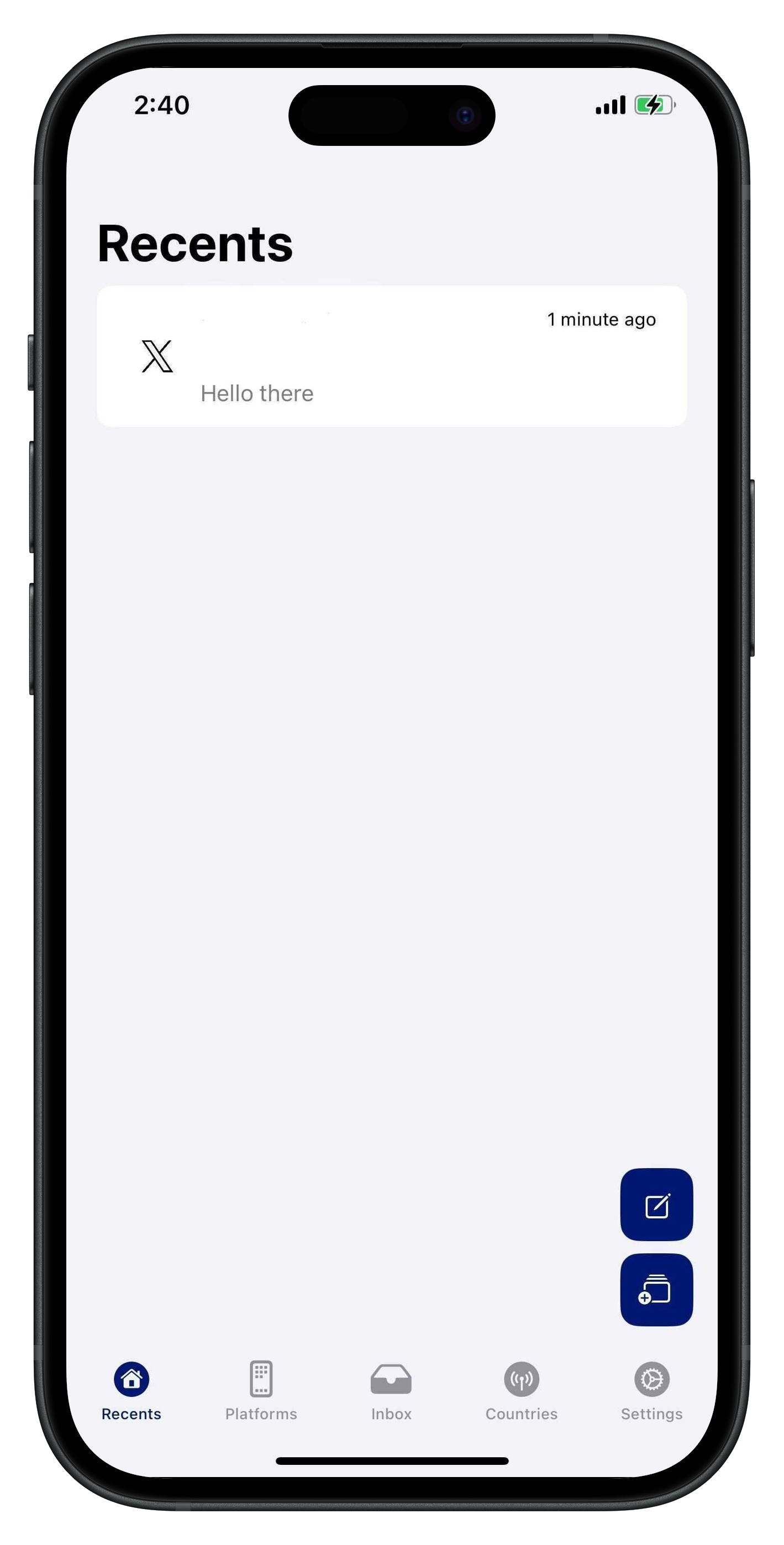
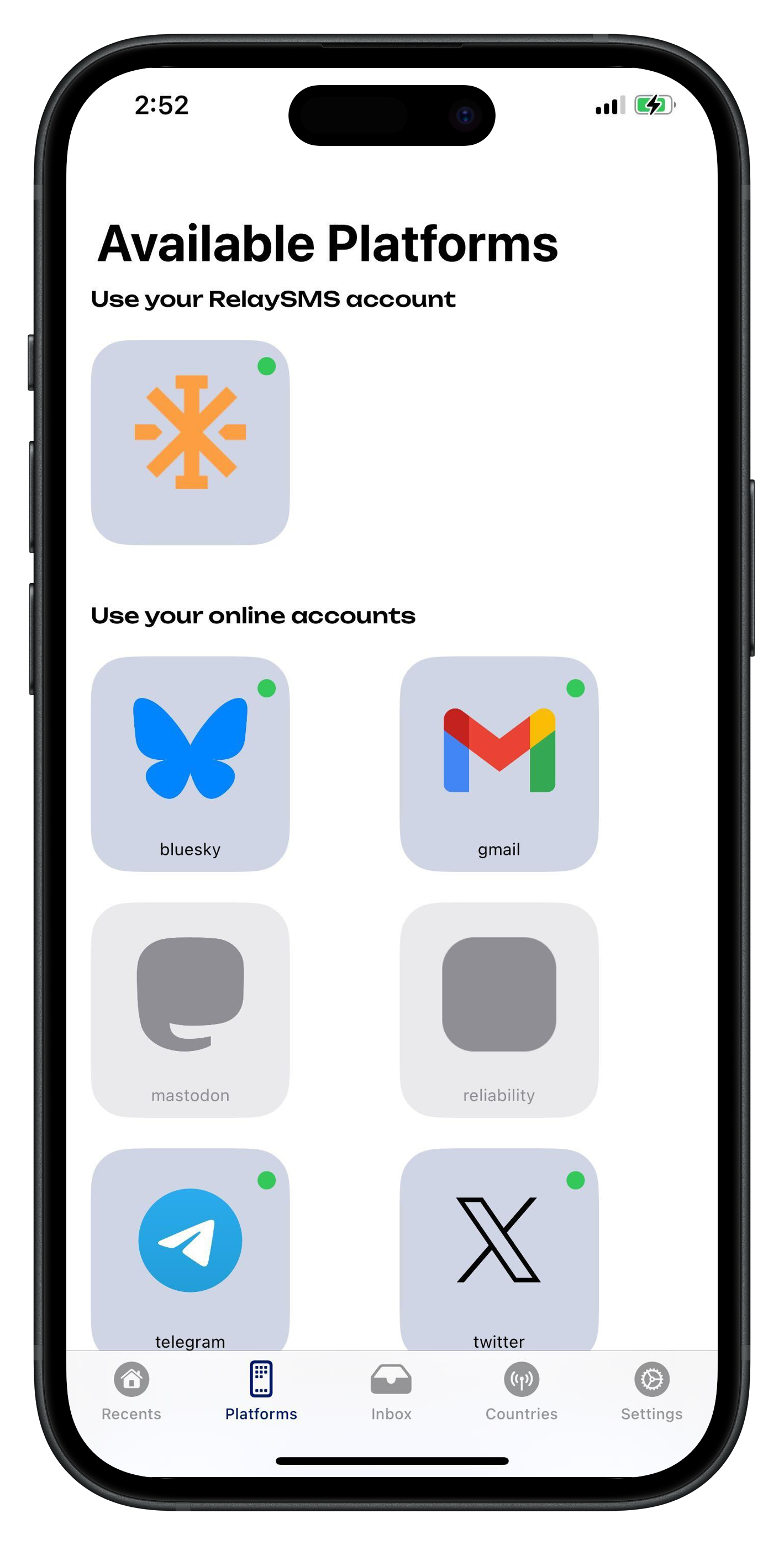
- b. Pick a saved platform, write your message, and tap Send.
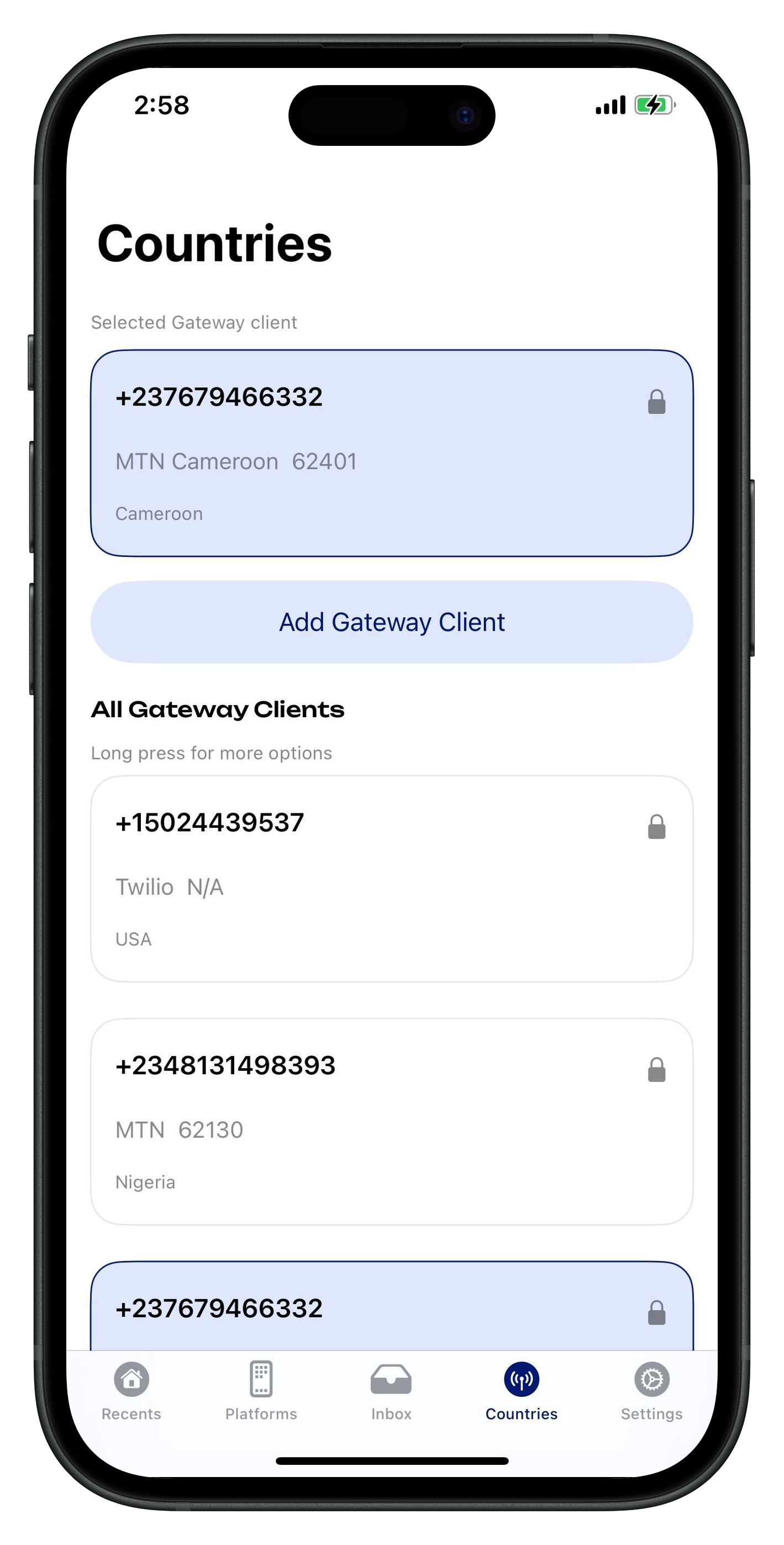
- c. Confirm the routing number, and that's it (if the RelaySMS app is set as your default messaging app).
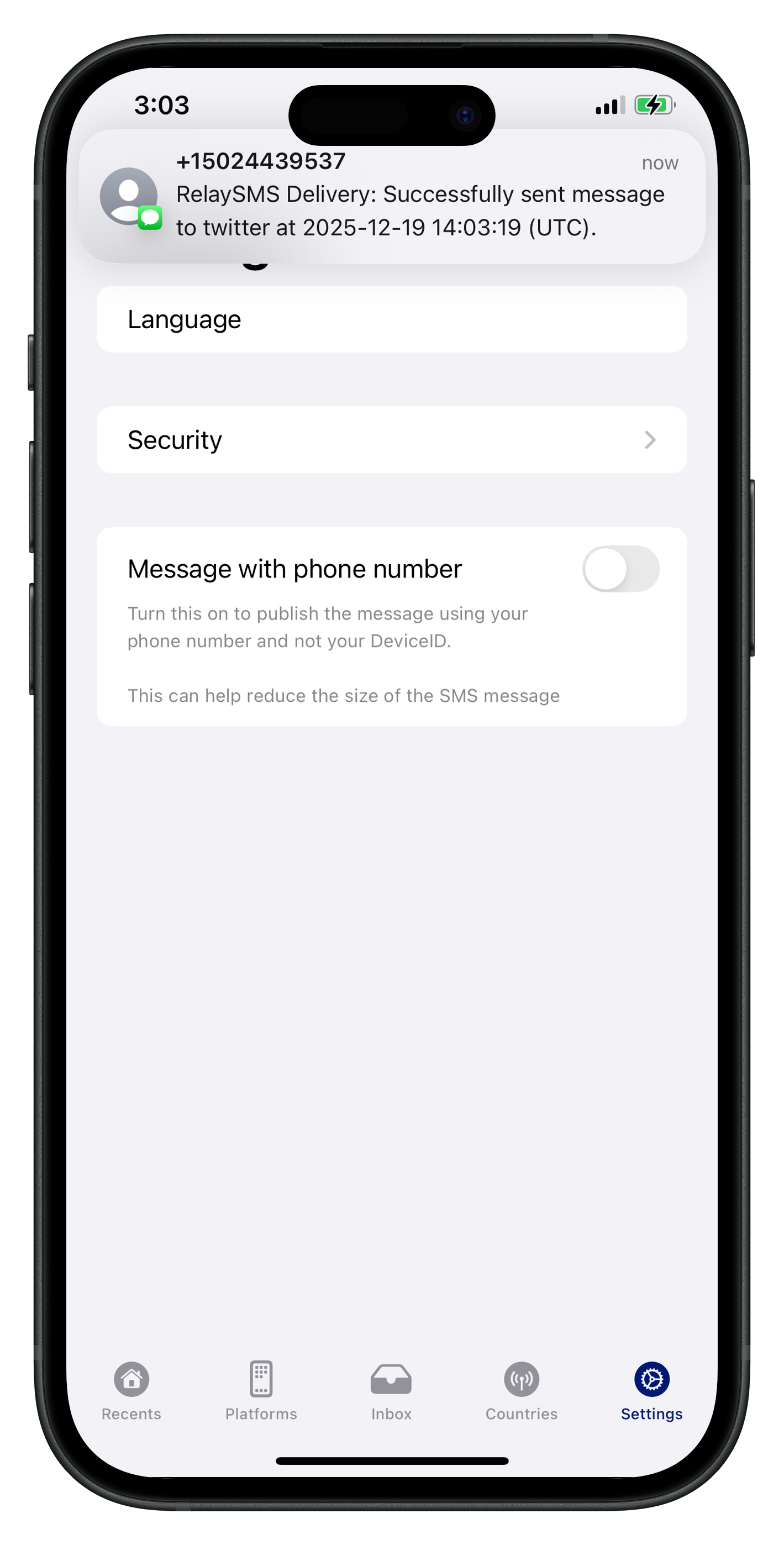
NB: If the RelaySMS app is not set as your default message app, you will be prompted to choose a default messaging app to send your message. Your encrypted message will appear there, just hit Send.
You’ll receive an SMS confirmation once your message is published to the selected platform.
Managing Your Saved Platforms
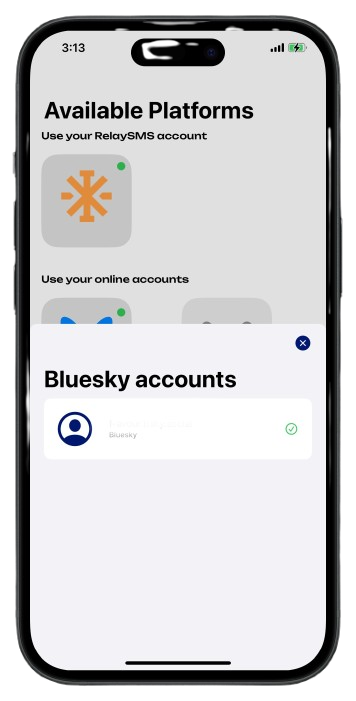
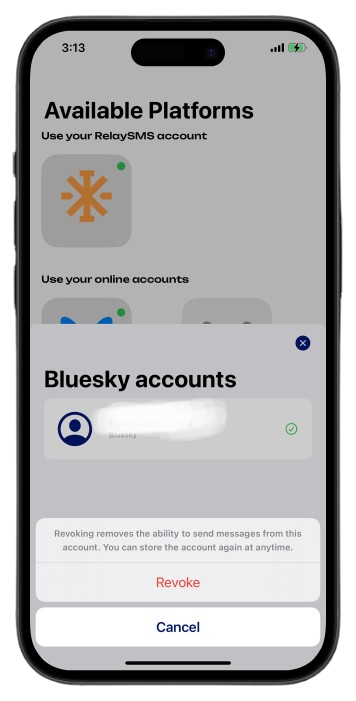
Revoking Access to a Saved Platform
- Open Platforms
- Select the platform you would like to remove access from
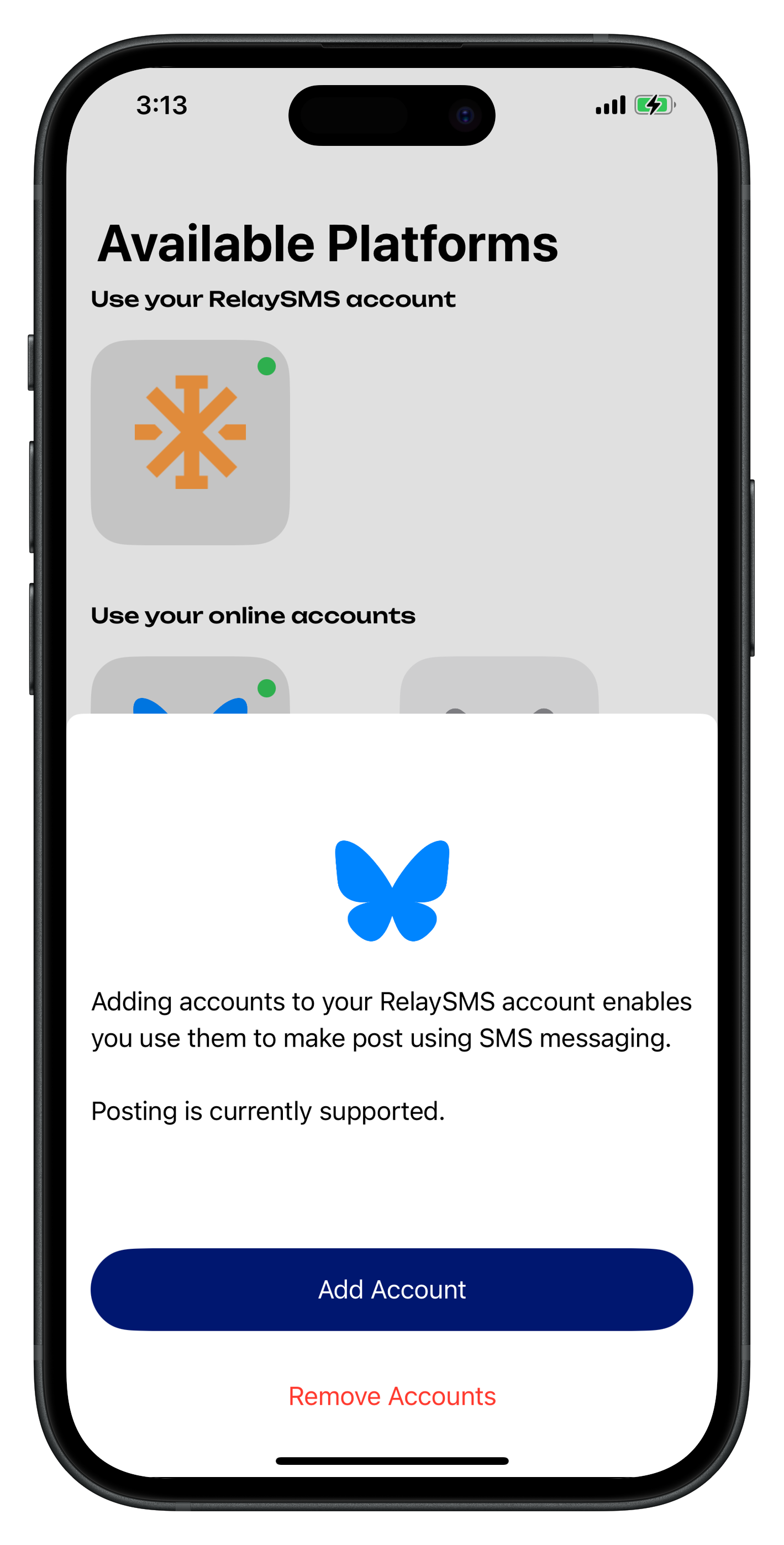
- Tap Remove Access
Deleting and Logging Out of Your Account
 s
s
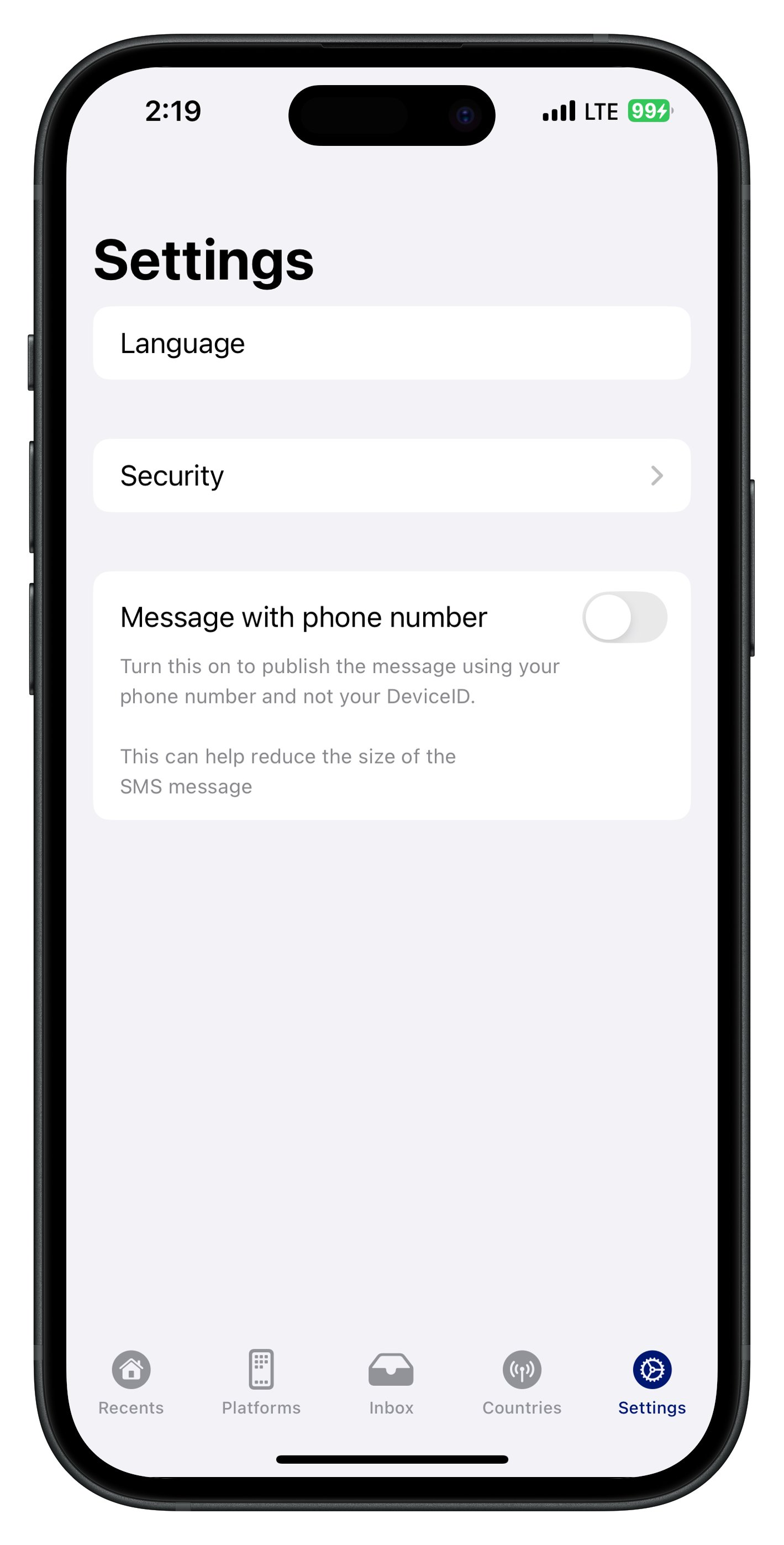
- Delete Account: Erases all saved accounts and data. You will need to create a new account to use RelaySMS again.
- Logout: Removes all current messages but allows you to log in later.